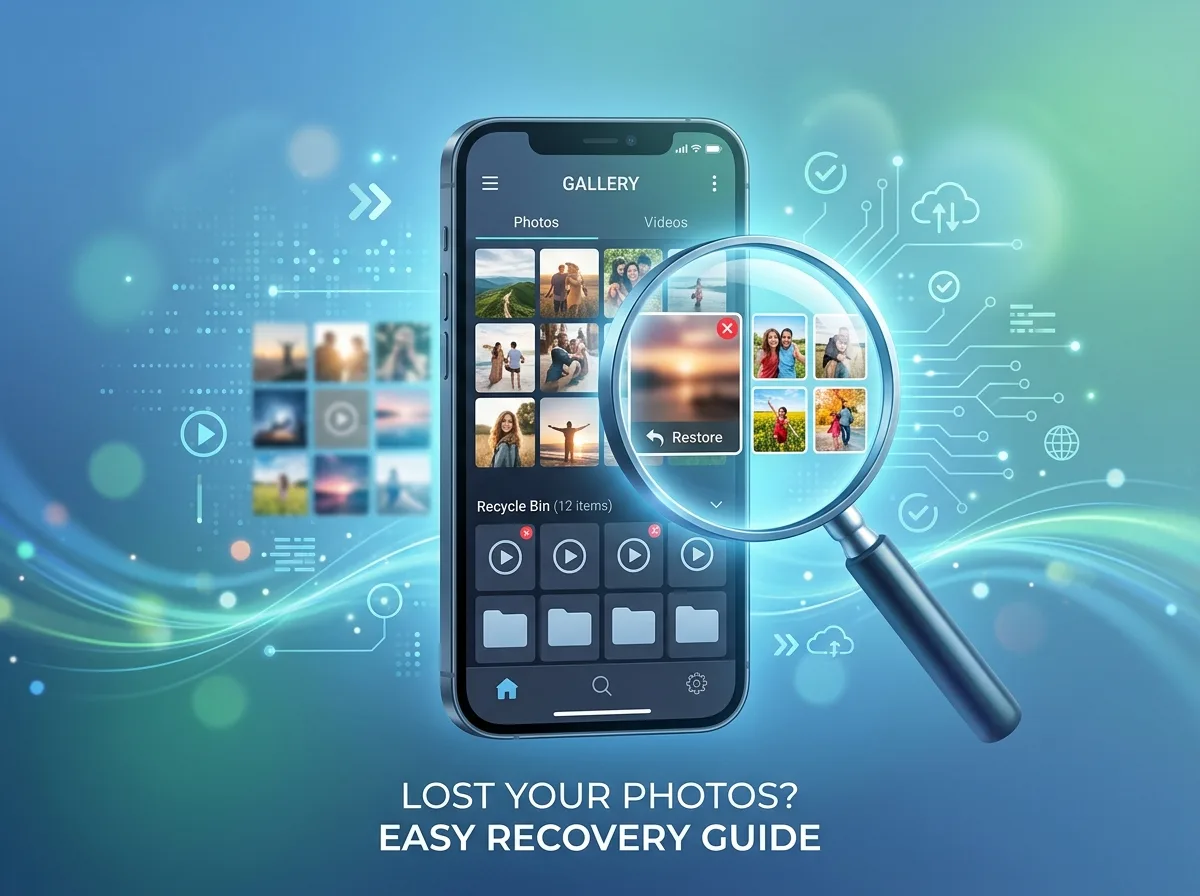
Losing precious photos and videos can feel like a disaster. One accidental tap on the screen can seemingly erase a cherished memory, an important document, or a video you cannot recreate. Panic usually sets in immediately. You frantically tap through your folders hoping the files miraculously reappeared, only to find empty space.
Fortunately, clicking the delete button rarely means your media is gone forever. Modern smartphones are designed with safeguards to prevent accidental data loss. Even when those safeguards are bypassed, the underlying technology of flash memory often retains your files until new data overwrites them.
This comprehensive guide will walk you through exactly how to recover deleted photos and videos from mobile devices. We will cover built-in recovery options, cloud backup solutions, and trusted third-party software for both Android and iOS operating systems. By following these steps, you have a high chance of restoring your missing files and securing your digital memories.
Understanding How Mobile Data Deletion Works
Before attempting any recovery steps, you need to understand what happens when you delete a file on a smartphone.
When you delete a photo or video, the operating system does not instantly destroy the data. Instead, it moves the file to a temporary holding folder—often called “Recently Deleted” or “Trash.” If the file is emptied from this temporary folder, the system still does not scrub the actual data from your storage drive immediately. It simply marks the space occupied by that file as “available” for new data.
Because the actual visual data remains on your phone’s storage drive for a brief period, you can often recover it using specialized software. However, if you continue taking new photos, downloading apps, or receiving large messages, your phone will eventually overwrite the old, invisible data with new information.
For this reason, the absolute most important rule of data recovery is to stop using your phone immediately. Put your device in airplane mode to prevent background updates and new incoming messages. Do not take any new photos or videos until you have completed your recovery attempts.
How to Recover Deleted Photos and Videos on iOS
Apple provides a highly streamlined ecosystem, which makes recovering lost media on an iPhone relatively straightforward. There are three primary methods to try.
Check the Recently Deleted Album
The easiest and most common way to retrieve lost media on an iPhone is through the Photos app. Apple automatically stores deleted items for 30 days before permanently erasing them.
- Open the Photos app on your iPhone.
- Tap on the Albums tab at the bottom of the screen.
- Scroll all the way down to the Utilities section and tap Recently Deleted. You may need to use Face ID or Touch ID to unlock this album.
- Locate the photos and videos you want to save.
- Tap Select in the top right corner, tap the specific files, and then press Recover in the bottom right corner.
Restore from an iCloud Backup
If the files are no longer in the Recently Deleted folder, your next best option is to check iCloud. If you have iCloud Backup enabled, your phone regularly saves your data to the cloud.
Restoring an entire iCloud backup requires you to erase your iPhone first, so you must ensure that a backup actually exists from a date when the photos were still on your device.
- Open Settings, tap your name at the top, and go to iCloud > iCloud Backup. Check the date of your last successful backup.
- If the backup is from a suitable time, go back to the main Settings menu.
- Navigate to General > Transfer or Reset iPhone > Erase All Content and Settings.
- Follow the on-screen prompts to wipe your device.
- As the phone restarts and goes through the setup process, choose Restore from iCloud Backup.
- Sign in with your Apple ID and select the relevant backup archive. Once the process finishes, your missing media should be back in your camera roll.
Restore from a Local Mac or PC Backup
Some users prefer to back up their iPhones locally using a Mac or a Windows PC. If you regularly plug your phone into your computer, you might have a full system backup waiting for you.
- Connect your iPhone to your computer using a USB cable.
- Open Finder (on a Mac running macOS Catalina or later) or iTunes (on older Macs and Windows PCs).
- Select your iPhone when it appears in the sidebar or top menu.
- Click Restore Backup.
- Choose the backup file that contains your missing photos and videos, and click Restore. Keep your phone connected until it finishes syncing.
How to Recover Deleted Photos and Videos on Android
The Android ecosystem is diverse, with different manufacturers using their own custom gallery apps. However, the core recovery methods remain consistent across most devices.
Look in the Trash or Bin Folder
Most modern Android phones have a built-in safety net similar to the iPhone’s Recently Deleted album. Depending on your manufacturer (Samsung, Google, Motorola), the folder might be named slightly differently.
For Google Photos (the default on Pixel and many other devices):
- Open the Google Photos app.
- Tap Library at the bottom of the screen.
- Tap Trash or Bin at the top.
- Long-press the photos or videos you want to retrieve.
- Tap Restore to send them back to your main gallery. Keep in mind that Google Photos keeps backed-up items in the trash for 60 days, while non-backed-up items are kept for 30 days.
For Samsung Gallery:
- Open the Gallery app.
- Tap the hamburger menu (three horizontal lines) at the bottom.
- Select Trash.
- Select the files you need and tap the restore icon (a curved arrow).
Retrieve from Google Drive or Cloud Backups
Android users heavily rely on Google services. If you use Google Drive or Google One to back up your phone, your media might be safe in the cloud.
Sometimes, photos are deleted from your local device storage to free up space, but they remain perfectly safe on Google’s servers. Open your Google Photos app and check your main feed. If you see your photos there, you can easily download them back to your device storage by opening the image, tapping the three dots in the top right, and selecting Download.
Additionally, check other cloud services you might have installed, such as Microsoft OneDrive, Dropbox, or Amazon Photos. Many of these apps offer an automatic camera upload feature that runs quietly in the background.
Use Third-Party Recovery Software
If your files are completely gone from your trash folders and you have no cloud backups, you will need to try third-party data recovery software.
Because Android file systems function much like a traditional computer drive, specialized software can scan the deep sectors of your storage to find overwritten data. You will typically need to connect your phone to a computer to perform this scan safely.
- Download a reputable data recovery program on your computer (such as Dr.Fone, EaseUS MobiSaver, or Tenorshare UltData).
- Enable USB Debugging on your Android phone. You can find this by tapping Build Number seven times in your phone’s “About” settings to unlock Developer Options.
- Connect your phone to your computer via USB.
- Launch the recovery software and follow the prompts to scan your device for deleted media.
- The software will display a preview of recoverable files. Select your lost photos and videos and save them directly to your computer.
Note: Some deep scanning features require your Android phone to be rooted. Rooting a device voids warranties and can cause security issues, so proceed with caution.
Proactive Steps to Prevent Future Data Loss
Recovering lost media is stressful and not always guaranteed. The most effective way to handle data loss is to prevent it from happening in the first place. Implementing a solid backup strategy will save you time, money, and emotional distress down the road.
Enable Automatic Cloud Syncing
The simplest way to protect your media is to let your phone do the work for you. Turn on automatic cloud backups for your preferred service. Apple users should ensure iCloud Photos is toggled on in their settings. Android users should verify that Google Photos is actively backing up their camera folder over Wi-Fi.
Perform Regular Local Backups
Cloud storage is incredibly convenient, but you should never rely on a single backup method. Get into the habit of plugging your phone into your computer once a month to create a localized backup. You can drag and drop your media files directly onto an external hard drive. This ensures that even if you lose access to your cloud account, your media remains safe on physical hardware you control.
Utilize Multiple Storage Solutions
Professional photographers adhere to the 3-2-1 backup rule: keep three copies of your data, on two different types of media, with one copy stored off-site. While you might not need to go to that extreme for everyday smartphone snapshots, having your photos in Google Photos, on your laptop, and on an external SSD provides peace of mind that a single hardware failure will not erase your memories.
Frequently Asked Questions (FAQ)
Can I recover permanently deleted photos without a backup?
Yes, it is sometimes possible using specialized third-party data recovery software. These programs scan the internal memory of your phone for raw data that has not yet been overwritten by new files. The faster you act and stop using your phone, the higher your chances of success.
How long do deleted files stay in the trash folder?
On iOS, the Recently Deleted album holds photos and videos for 30 days. On Android, the Google Photos Trash holds backed-up files for 60 days and non-backed-up files for 30 days. Samsung Gallery also retains files for 30 days.
Are third-party recovery apps safe to use?
Reputable desktop-based recovery tools from established companies are generally safe. Always research the software, read independent reviews, and download directly from the official developer website to avoid malware. Be very skeptical of mobile apps that claim to do deep data recovery directly on the device, as they often require dangerous permissions or simply do not work.
Does a factory reset permanently delete my photos?
A factory reset wipes the encryption keys and file structures from your phone, making data recovery extremely difficult, if not impossible, for the average consumer. If you performed a factory reset, your only reliable way to recover media is by restoring from a prior cloud or computer backup.
Securing Your Digital Memories Moving Forward
Losing access to your personal photos and videos serves as a harsh reminder of how fragile digital data can be. Whether you successfully restored your missing files from a recently deleted folder or had to rely on specialized desktop software, the experience highlights the absolute necessity of a reliable backup system.
Take a few minutes today to check your cloud settings, review your storage limits, and create a localized backup on your computer. By taking a proactive approach to data management, you ensure that your most important digital memories remain safe, accessible, and protected against any accidental taps in the future.
For more info please visit Techleez.

Fold Smith
Fold Smith is a technology journalist and the lead editor of The Techleez, an India-first publication that decodes technology, digital payments, streaming and online culture for everyday readers. From UPI and fintech explainers to OTT streaming guides, Android tips and online-safety checklists, he personally tests the apps, tools and services featured on the site before recommending them. His focus is practical, research-backed guidance that helps Indian readers make smarter digital decisions — spend less, stream better and stay safe online. When he is not writing, he is usually tracking NPCI circulars, first-day-first-show box office numbers, or the next big OTT premiere.
More from this author →