Few things interrupt a productive workday or a relaxing evening quite like a buffering screen. You click a link, wait, and watch the progress bar stall. A sluggish connection disrupts everything from video calls with colleagues to streaming your favorite shows.
Understanding why your connection is lagging is the first step toward resolving the issue. Hardware glitches, network congestion, and software conflicts can all drag down your browsing speeds. The good news is that you rarely need a degree in computer science to restore your connection to its full potential.
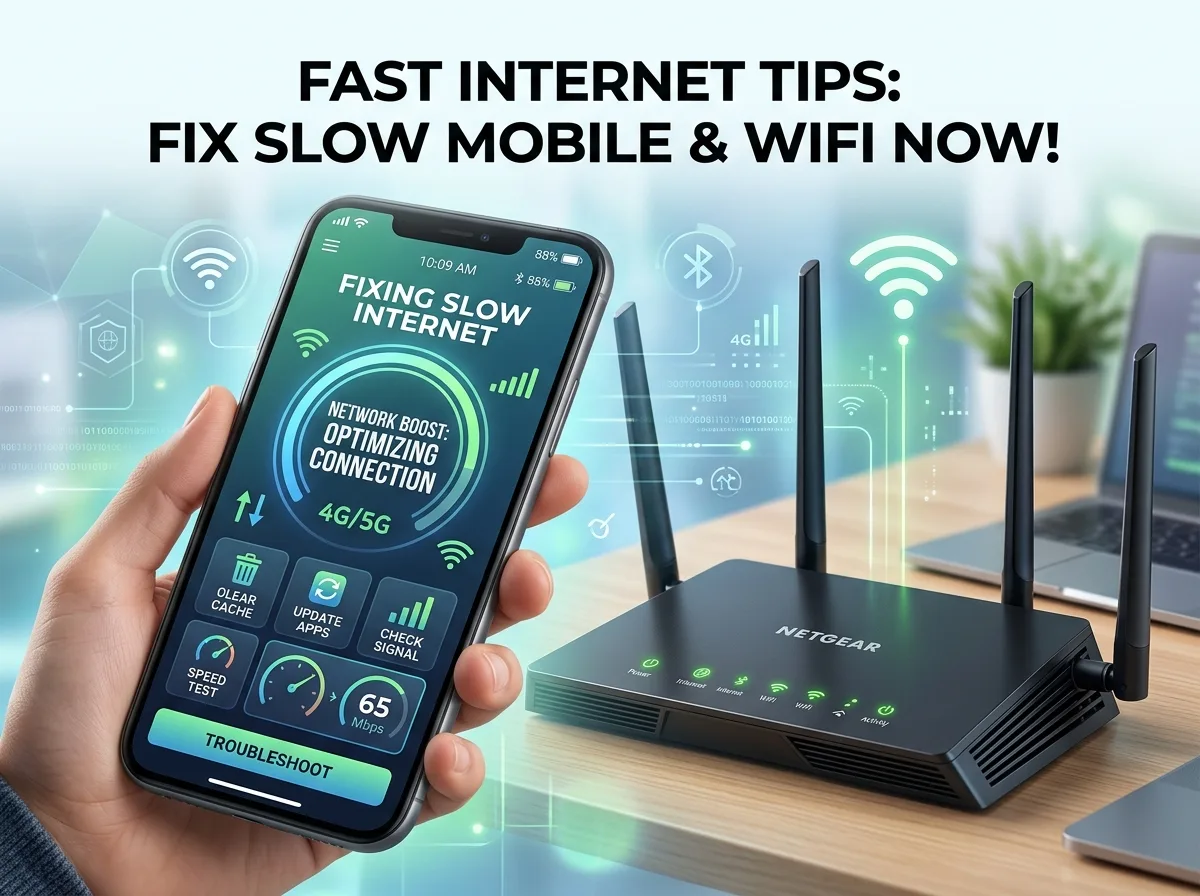
This comprehensive guide covers practical, step-by-step solutions to help you fix slow internet on both your mobile device and your home WiFi network. By following these troubleshooting methods, you can quickly identify the root cause of the slowdown and implement the right fix to get back online.
Quick Troubleshooting for Any Connection
Before diving into specific fixes for cellular data or home networks, try these universal solutions. They take only a few moments and often resolve minor software conflicts causing the slowdown.
Restart Your Device
Turning your device off and on again is a classic troubleshooting step for a good reason. Smartphones, tablets, and computers build up temporary files and background processes over time. A quick reboot clears the system memory and forces your device to establish a fresh connection with the network. Hold down the power button, turn the device off completely, wait about thirty seconds, and power it back on.
Close Background Applications
Modern applications constantly sync data in the background. Cloud storage apps, social media feeds, and software updates can consume massive amounts of bandwidth without you even realizing it. Swipe away any apps you are not actively using on your smartphone. On a computer, check your task manager or activity monitor to identify programs eating up your network capacity and close them.
How to Fix Slow Mobile Internet
When your smartphone struggles to load a simple webpage while running on cellular data, the problem usually stems from signal interference, network settings, or carrier restrictions.
Toggle Airplane Mode
Switching Airplane Mode on and off forces your phone to disconnect from your cellular network and reconnect to the nearest cell tower. This simple action often bypasses temporary signal drops or congestion. Swipe down to access your phone’s quick settings, tap the airplane icon, wait ten seconds, and tap it again to reconnect.
Check Your Data Cap
Many cellular plans advertise “unlimited” data but include a hidden catch. Once you exceed a specific usage threshold during your billing cycle, your carrier will throttle your internet speed. Check your carrier’s mobile app or send a text to their automated service line to review your current data usage. If you have hit your limit, you will likely experience slow speeds until the next billing cycle begins or you purchase a data add-on.
Reset Network Settings
If your phone consistently struggles with slow internet, your network configurations might be corrupted. Resetting these settings restores your cellular, WiFi, and Bluetooth connections to their factory defaults. Navigate to your phone’s settings menu, find the system or general management tab, and look for the reset options. Keep in mind that this process will erase saved WiFi passwords, so have them handy before proceeding.
Remove and Reinsert Your SIM Card
A loose or dirty SIM card can disrupt the connection between your phone and your carrier’s network. Turn off your device, use a SIM ejector tool or a paperclip to open the tray, and carefully remove the card. Wipe the metal contacts with a clean, dry microfiber cloth. Reinsert the card securely and turn your phone back on.
How to Fix Slow WiFi Internet at Home
Home network issues are usually tied to your router, physical obstructions, or interference from other electronic devices. Try these steps to optimize your local connection.
Restart Your Router and Modem
Just like your phone or computer, your router and modem need an occasional break. Unplug the power cables from both devices. Leave them unplugged for a full minute to allow the internal capacitors to drain completely. Plug the modem back in first and wait for the lights to stabilize. Then, plug in the router. This power cycle clears out network congestion and forces the devices to find a cleaner connection to your Internet Service Provider (ISP).
Reposition Your Router
WiFi signals travel through the air, and physical barriers heavily impact their strength. Thick walls, metal appliances, and even large bodies of water like aquariums can absorb or reflect the signal. Place your router in a central, elevated location within your home. Keep it away from microwaves and cordless phones, which operate on similar radio frequencies and can cause interference.
Disconnect Unnecessary Devices
Every smart TV, gaming console, thermostat, and smartphone connected to your network claims a slice of your total bandwidth. If multiple devices are streaming video or downloading updates simultaneously, your overall speed will plummet. Disconnect devices you are not actively using. Many modern routers feature a companion app that allows you to view connected devices and pause the internet for specific users.
Update Your Router’s Firmware
Router manufacturers regularly release firmware updates to improve performance, patch security vulnerabilities, and fix bugs. An outdated router can struggle to deliver optimal speeds. Log into your router’s administrative dashboard through a web browser (the IP address and login details are usually printed on a sticker on the back of the device). Look for a section labeled “Firmware” or “System Update” and install any available upgrades.
Frequently Asked Questions (FAQ)
Why is my internet fast on one device but slow on another?
This usually indicates an issue with the specific device rather than the network itself. The slow device might have outdated network drivers, background applications consuming bandwidth, or a failing hardware component. Older devices also use older WiFi standards, which inherently cap their maximum connection speeds.
Does clearing my browser cache improve internet speed?
Clearing your cache does not increase your actual network speed, but it can make your web browser feel significantly faster. Browsers store temporary files to load frequently visited sites quickly. When this cache becomes too large or corrupted, it causes the browser to lag. Emptying the cache forces the browser to pull fresh data, resolving many loading issues.
Can weather affect my mobile data connection?
Yes. Severe weather events like heavy rain, thick fog, and thunderstorms can scatter or absorb the radio waves transmitted by cell towers. This environmental interference weakens the signal reaching your phone, resulting in slower data speeds and dropped connections.
Get Back Up to Speed Today
Dealing with sluggish connectivity is frustrating, but you have the power to resolve most issues on your own. Start with the easiest hardware reboots and move systematically through device settings and network optimizations. Whether you are adjusting your home router’s placement or simply resetting your smartphone’s cellular connection, these proactive steps will help you maintain a reliable, fast connection.
If you have tried all the troubleshooting methods above and still experience severe lag, it might be time to contact your Internet Service Provider. They can run diagnostic tests on their end, identify localized outages, or help you determine if your current hardware requires a physical replacement.
For more info please visit Techleez.

Fold Smith
Fold Smith is a technology journalist and the lead editor of The Techleez, an India-first publication that decodes technology, digital payments, streaming and online culture for everyday readers. From UPI and fintech explainers to OTT streaming guides, Android tips and online-safety checklists, he personally tests the apps, tools and services featured on the site before recommending them. His focus is practical, research-backed guidance that helps Indian readers make smarter digital decisions — spend less, stream better and stay safe online. When he is not writing, he is usually tracking NPCI circulars, first-day-first-show box office numbers, or the next big OTT premiere.
More from this author →